Sending super and contribution data to us
You need to send us super and contribution data each fortnight for our customers. Learn more about our data requirements and the process here.
Important
This information applies to participating employers in CSS, PSS and PSSap. If you’re a non-government employer, please refer to the ATO’s website for more information.
CSS and PSS contributions can’t be submitted through a clearing house. That’s because there’s additional data you need to report to us each fortnight^ in a format we’ve designed especially for those super funds.
You’ll know this format as the SAFFE – SuperStream Alternative File Format Extended.
How to submit CSS and PSS contribution data to us
You must send contribution data for employees in CSS and PSS each fortnight^ through our Employer Services Online (ESO) portal. Learn more about how to use ESO in our ESO user guide. You can request access to ESO using our access request form. Our online access request form is temporarily out of service.
What’s required in the SAFFE
Have a read of our SAFFE data requirements guide and our Contributions payment guide to understand what you need to include in your contribution data.
Contributions for employees in PSSap must be submitted through a clearing house. If your employer default super fund is PSSap, you can register to use our clearing house service, QuickSuper*, for free.
Contributions are submitted using the SuperStream Alternative File Format (SAFF).
If you use a different clearing house, make sure it can accept contributions in the SAFF format. You should also check that PSSap is set up as a default super fund to allow customer information to flow through to us correctly. You can have more than one default super fund set up.
What’s required in the SAFF
Our SAFF data requirements guide outlines what you need to know about submitting contributions to PSSap. We’ve also answered your most common questions about using our clearing house, QuickSuper, to pay PSSap and other accumulation super contributions.
Where to find a membership number for a new PSSap member
The CSC-branded clearing house detects a new default fund membership when you submit your payroll data in the portal or create a new employee manually online, and sends a Member Registration Request (MRR) to the fund to create a new membership for your employee.
The fund will then return a message to the clearing house called a Member Registration Outcome Response (MROR) with the new membership number for you to input into your payroll system and submit with future contributions.
There are three ways you can manage these membership (member ID) updates:
- Choose to have the clearing house automatically apply these updates and review the member ID update report regularly
- Review the member ID updates that need actioning regularly and action these responses manually; or
- Use the SuperStream screens to view and action these responses manually.
Manage membership (member ID) updates
Automatic membership number updates
If you want to have the CSC-branded clearing house automatically apply membership numbers (member IDs) received from super funds, you need to have the ‘Apply member IDs’ setting activated in your preferences.
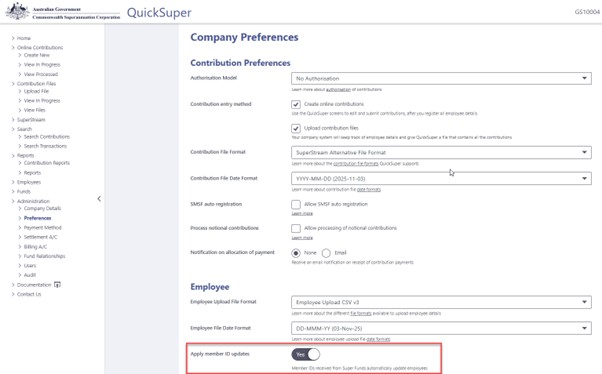
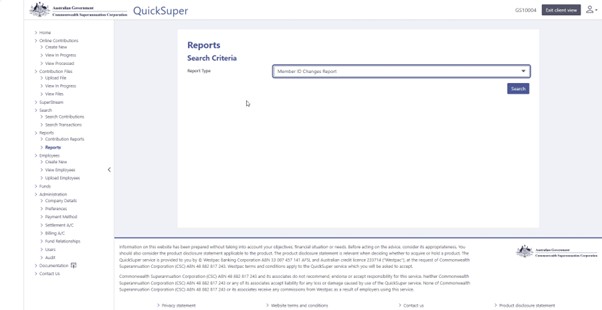
Once this preference is set to yes, the clearing house will start producing a weekly member ID changes report for you to use to update your payroll system.
The report is in CSV format and may possibly be configured by your payroll provider to be uploaded into your payroll system. This may be useful if you have large numbers of new starters. You should talk to your payroll provider directly about this.
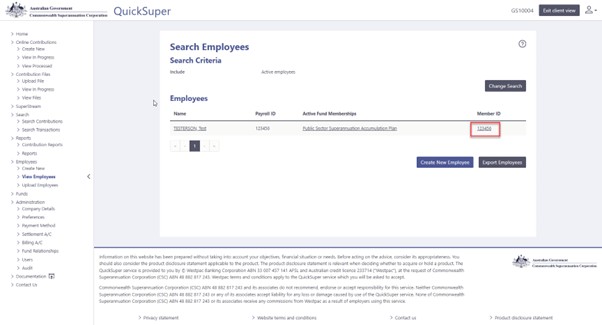
The member ID will also appear against your employee in your employee listing in the clearing house.
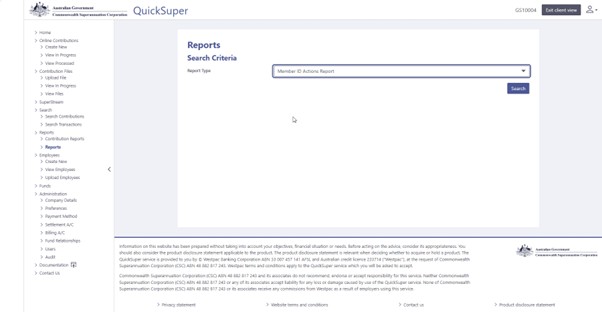
Member ID actions report
If you have the ‘Apply member ID updates’ preference selected as ‘No’ in your clearing house account, a weekly report will be generated for you including member data you provided to the super fund for a new employee and the information returned from the fund.
By not having the member IDs automatically updated also means if you search for an employee’s member number in your employee listing it will not show the member ID returned from the fund. It will stay as ‘unknown’ based on the data you originally created for that employee on your first data submission for them.
SuperStream outcome responses
You can also manage new membership numbers returned from a super fund through the SuperStream function of the clearing house. Select the ‘Received Message Responses’ tab and then select the type ‘Member Registration Outcome Response’.
The CSC-branded clearing house detects a new default fund membership when you submit your payroll data through the portal or create a new employee manually online, and sends a Member Registration Request (MRR) to the fund to create a new membership for your employee.
The fund will then return a message to the clearing house called a Member Registration Outcome Response (MROR) with the new membership number for you to input into your payroll system and submit with future contributions.
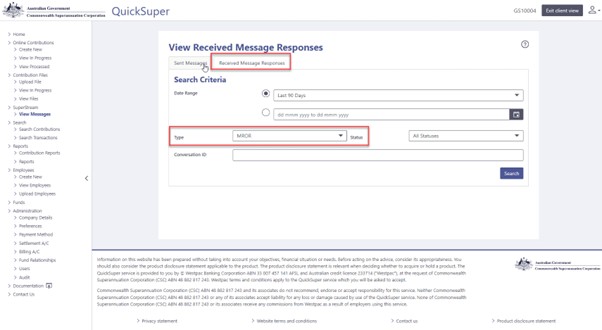
If you choose to use these screens to manage the data being returned by your employee’s super funds, you should log in and action these regularly to ensure that your employee data is up to date.
How do I find out what contribution was paid for a member?
If you are using our CSC-branded clearing house, you can check contributions to PSSap and ADF Super in a couple of ways.
-
Search contributions
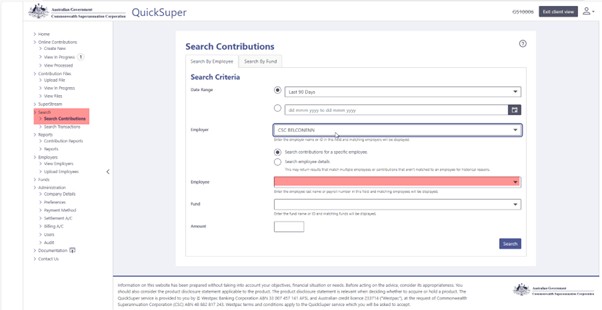
The easiest way to find this information is by selecting the ‘Search Contributions’ tab from the menu.
Enter the employee’s surname or payroll ID and click ‘Search’.
If you are a multi-employer, you will need to select the correct employer from the drop- down menu first.
-
View employees
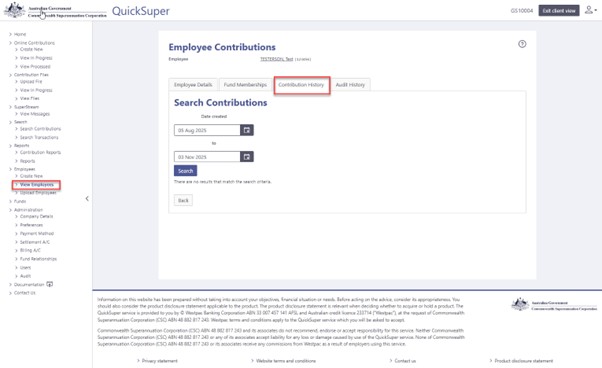
Alternatively, you can look up your employee by clicking the ‘View Employees’ option in the View Employees menu and locating the employee.
Select the employee you are looking for and click on the ‘Contribution History’ tab.
You can pay ADF Super contributions via a clearing house, just like most other accumulation super funds. You’ll need to include your employee’s ADF Super account number with every transaction so that we can make sure the money is allocated to the correct account.
Your employee doesn’t have to send us a form or nominate you before you can start paying contributions into ADF Super.
Non-ADF employers must make contributions at the Super Guarantee rate, currently 11% of ordinary-time earnings. You can pay at a higher rate if it's required by your enterprise agreement (or similar) or your employee's conditions of payment.
A note on eligibility
To keep an ADF Super account when leaving the ADF, veterans must have served in the permanent forces or as a continuous full-time reservist for at least 12 continuous months. It’s not possible to have contributions paid from the ADF and a non-ADF employer at the same time, so you won’t be able to contribute into ADF Super until your employee has transitioned out of the ADF.
How do I find out what contribution was paid for a member?
If you are using our CSC-branded clearing house, you can check contributions to PSSap and ADF Super in a couple of ways.
-
Search contributions
The easiest way to find this information is by selecting the ‘Search Contributions’ tab from the menu.
Enter the employee’s surname or payroll ID and click ‘Search’.
If you are a multi-employer, you will need to select the correct employer from the drop- down menu first.
-
View employees
Alternatively, you can look up your employee by clicking the ‘View Employees’ option in the View Employees menu and locating the employee.
Select the employee you are looking for and click on the ‘Contribution History’ tab.
Find out more
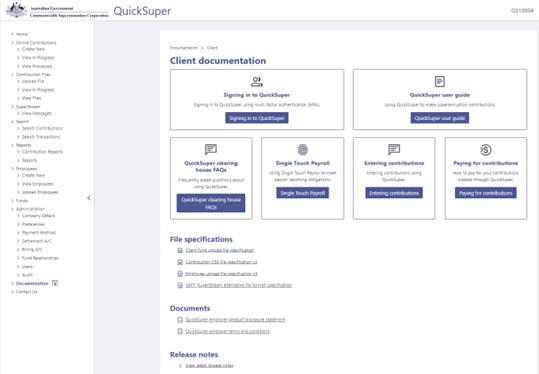
More information and guides are available in the clearing house portal.
If you don’t use the CSC-branded clearing house you should check with your provider on how to look up contributions paid in their portal.
*QuickSuper is issued by the Westpac Banking Corporation ABN 33 007 457 141 AFSL 233714.